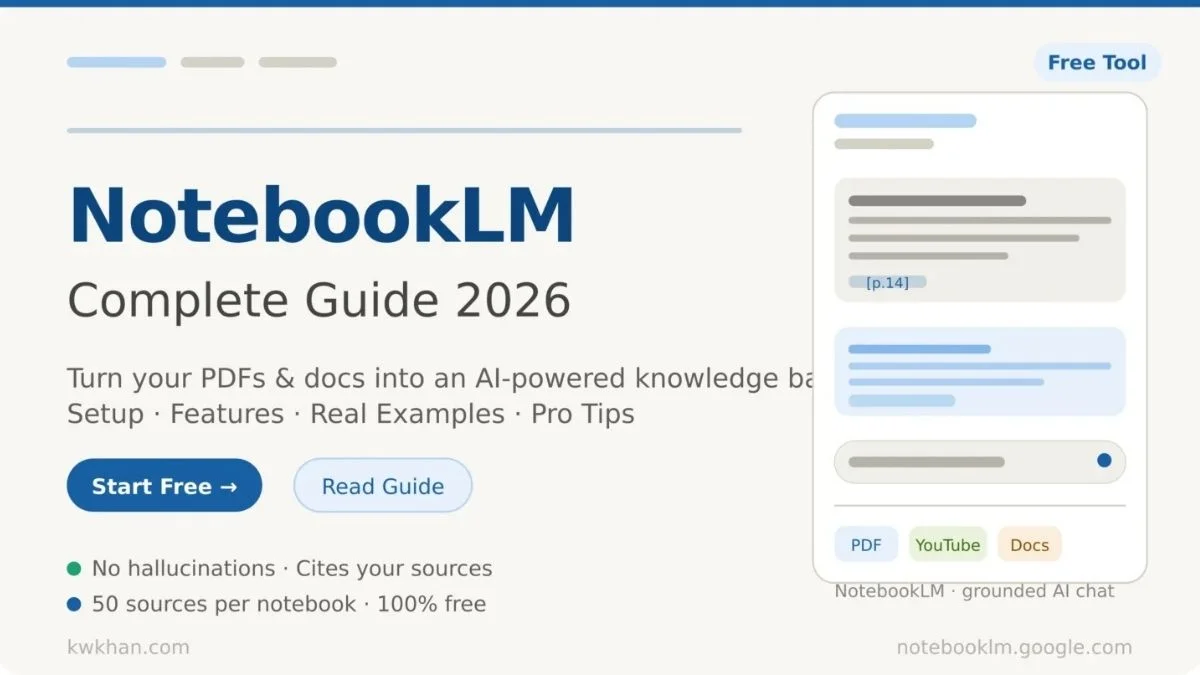
Master NotebookLM
Your AI Research Powerhouse
Turn your PDFs, docs, and notes into an interactive knowledge base — with AI that only uses your sources.
What is NotebookLM?
NotebookLM is Google's AI-powered research assistant that works exclusively with your uploaded documents — not the internet. It reads your files, then lets you chat with them, summarize them, and turn them into podcasts, videos, flashcards, and more.
Source-Grounded AI
Unlike ChatGPT, NotebookLM only answers from what you upload. No hallucinations — every answer includes citations with page numbers.
Your Personal Knowledge Base
Upload PDFs, Google Docs, YouTube links, websites, and even EPUB books. NotebookLM organizes and connects them for you.
AI Podcast Generator
Turn any document into an engaging 2-host podcast conversation. You can even interrupt mid-episode to ask questions!
Privacy-First
Your uploads and conversations are NOT used to train Google's AI models. Your data stays private within your account.
NotebookLM ✅
- Only uses your uploaded sources
- Cites exact page numbers
- Zero hallucinations
- Private — data not used for training
- Generates audio, video, mind maps
Generic AI Chatbots ❌
- Uses internet data indiscriminately
- No source citations
- Can hallucinate facts
- May use your data for training
- Text-only outputs
How to Set Up NotebookLM
From zero to your first AI-powered notebook in under 5 minutes. Follow these steps exactly.
Go to NotebookLM & Sign In
Open your browser and visit notebooklm.google.com. Sign in with your Google account — it's completely free to start.
Create a New Notebook
Click the "+ New Notebook" button on the home screen. Give it a clear name like "Marketing Research" or "Biology Notes".
Upload Your Sources
Click "+ Add Source" in the left panel. You can upload PDFs, paste a website URL, add a YouTube link, Google Docs, or even EPUB eBooks (up to 50 sources per notebook).
Start Chatting with Your Documents
Once sources are uploaded, type any question in the Chat panel. NotebookLM will answer using only your documents, with clickable citations you can verify instantly.
1. Climate change accelerated by 2°C [research_paper.pdf, p.14]
2. Renewable adoption rose 40% [blog_article, para 3]
Generate Content from the Studio Panel
Click the Studio panel (right side) to generate Audio Overviews, Video Overviews, Mind Maps, Slide Decks, Infographics, Flashcards, and more — all in one click!
All NotebookLM Features Explained
A complete breakdown of every tool available — from basic chat to cutting-edge 2026 updates.
Grounded AI Chat
Ask questions and get answers backed by your sources. Every response includes exact citations with page numbers — fully verifiable.
Audio Overview (Podcast)
Transform any document into a 2-host AI podcast. Customize tone, style, and length. Download for offline listening.
In 2026, you can now interrupt the podcast mid-episode and ask the AI hosts your own questions!
Video Overview
Generate narrated explainer videos with AI visuals. Choose styles: Whiteboard, Kawaii, Watercolor, or Cinematic for immersive deep-dive videos.
Interactive Mind Map
Instantly visualize connections between all topics in your sources. Click any node to start a grounded chat about that specific branch.
Slide Deck Generator
Create full presentations from your sources. Now edit slides directly in-app. Export as PDF or PPTX to continue in PowerPoint.
Infographic Styles
Choose from Sketch Note, Kawaii, Professional, Scientific, Anime, Clay, Editorial, Instructional, Bento Grid, or Bricks styles.
Flashcards & Quizzes
Auto-generate study cards from your documents. Progress saves across sessions. Mark cards as "Got it" or "Missed it" and shuffle the deck.
Deep Research
Specify exact sources for research (e.g., "only peer-reviewed journals") — NotebookLM researches deeply within your defined boundaries.
Data Tables
Extract scattered data from multiple sources into a clean, sortable comparison table. Perfect for competitive analysis.
Use Cases with Real Examples
See exactly how to use NotebookLM for different goals — with sample prompts you can copy and use.
🎓 Students — Ace Your Exams
Upload your textbook chapters, lecture notes, and past papers. NotebookLM creates a study guide, flashcards, and even a podcast you can listen to while commuting.
🔬 Researchers — Analyze Multiple Papers
Upload 10–20 research papers. Ask NotebookLM to identify contradictions, summarize findings, and build a comparison table of methodologies.
💼 Professionals — Prepare for Meetings
Upload meeting documents, reports, and spreadsheets. Get a concise briefing, key talking points, and potential questions before any meeting.
✍️ Content Creators — Research to Article
Upload your research sources, then ask NotebookLM to outline a blog post, identify quotes, and generate section summaries. Then write faster than ever.
💰 Investors — Analyze Financial Reports
Upload earnings calls, annual reports, and competitor analyses. NotebookLM extracts KPIs, risk factors, and growth signals in minutes.
Best Prompts to Get Started
Copy and paste these prompts into NotebookLM after uploading your sources for instant results.
| Goal | Prompt to Use | Output |
|---|---|---|
| Quick Summary | "Give me a 5-bullet summary of the most important points across all sources." | Concise overview |
| Study Flashcards | "Create 15 flashcards with questions and answers from these documents." | Auto flashcards |
| Compare & Contrast | "What are the key differences between [Topic A] and [Topic B] based on these sources?" | Comparison table |
| Extract Data | "Pull all statistics, numbers, and percentages from the documents into a table." | Data table |
| Podcast Brief | "Create a 15-minute podcast about [topic] that focuses on practical takeaways." | Audio overview |
| FAQ Sheet | "Generate the top 10 most common questions a beginner would ask, with answers from these sources." | FAQ document |
Tips to Get the Best Results
These small habits dramatically improve your NotebookLM experience.
Use Custom Instructions
Set a "Configure Chat" system prompt for your notebook. Example: "Always respond as if explaining to a non-technical audience."
Name Notebooks Clearly
Create separate notebooks per project. "2026 Tax Research" is better than "New Notebook 3". Stay organized from the start.
Pin Important AI Responses
Click the pin icon on any great AI response to save it permanently as a note inside the notebook.
Use Google Docs as "Living Sources"
Unlike PDFs (static), Google Docs added as sources update in real-time. Perfect for ongoing projects and team collaboration.
Interrupt the Podcast!
While listening to an Audio Overview, type a question — the AI hosts will pause, answer your question from your sources, then continue.
Clear Chat History Regularly
Use "Delete Chat History" after a few back-and-forths so old context doesn't bias new answers. Pin anything worth keeping first.
Free vs. NotebookLM Plus
Most users find the free tier more than enough. Here's exactly what you get.
- Up to 50 sources per notebook
- 500,000 words per source
- Audio Overviews (Podcast)
- Video Overviews
- Mind Maps & Flashcards
- Infographics & Slide Decks
- Interactive Audio Mode
- Mobile app (iOS & Android)
- Everything in Free, plus:
- 5x more Audio Overview minutes
- Priority access to new features
- Advanced sharing & team notebooks
- Google Workspace integration
- Admin controls for organizations
- Gemini 2.0 Flash model access
- Extended conversation memory
Frequently Asked Questions
Answers to the most common questions about NotebookLM.
Ready to Try NotebookLM?
It's free, takes 2 minutes to set up, and will completely transform how you work with information.
Start Free at notebooklm.google.com →